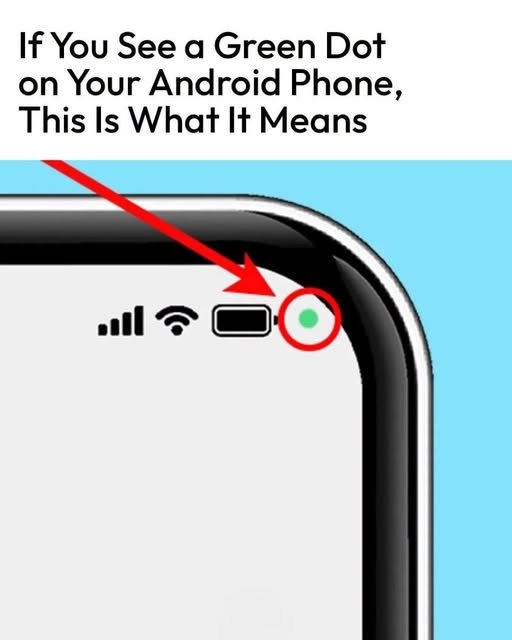
Have you ever noticed a small green dot appearing in the upper-right corner of your Android phone and wondered what it means? You’re not alone. Many Android users first spot this tiny indicator and worry that someone might be spying on them.
Fortunately, in most cases, the green dot is actually a helpful privacy feature—not a warning that your phone has been hacked.
Introduced in newer versions of Android, this indicator lets you know when an app is actively using your phone’s camera or microphone. It’s designed to give users greater control over their privacy and make it easier to spot unexpected app activity.
Here’s everything you need to know about the Android green dot, why it appears, and what to do if you think something isn’t right.
What Is the Green Dot on Android?
The green dot is a privacy indicator built into Android.
It appears whenever an app is actively accessing your:
- Camera
- Microphone
- Or, on some devices, both at the same time
Think of it as your phone’s way of saying:
“An app is currently using your camera or microphone.”
This feature helps users know exactly when sensitive hardware is in use.
Why Did Google Add the Green Dot?
Privacy has become increasingly important as smartphones store more personal information than ever before.
Apps may request permission to use:
- Your camera
- Your microphone
- Your location
- Your contacts
- Your photos
The green dot was introduced to make these permissions more transparent.
Instead of wondering whether an app is listening or recording, you receive a visible reminder whenever your camera or microphone is active.
When Does the Green Dot Appear?
You’ll commonly see it while using apps such as:
Video Calling Apps
Examples include:
- Google Meet
- Zoom
- Microsoft Teams
These apps need access to your camera and microphone during calls.
Camera Apps
When you open your phone’s camera, the indicator appears because the camera is in use.
Voice Recording Apps
Audio recorder apps activate the microphone, causing the green dot to appear.
Voice Assistants
Using assistants like Google Assistant may briefly trigger the indicator while your voice is being processed.
Social Media Apps
Apps such as Instagram, Snapchat, TikTok, or Facebook may display the indicator while recording videos, taking photos, or using voice features.
Should You Be Worried?
Usually, no.
If you intentionally opened an app that needs the camera or microphone, the green dot is simply confirming that it’s being used.
For example:
- Recording a video
- Joining a video meeting
- Taking a selfie
- Sending a voice message
In these situations, the indicator is completely normal.
When Should You Pay Attention?
The green dot deserves a closer look if:
- It appears when you’re not using the camera.
- It stays on for an unusually long time.
- It appears immediately after opening an unfamiliar app.
- You don’t recognize what might be using your microphone.
Although this doesn’t automatically mean your phone is compromised, it’s worth checking which app is responsible.
How to See Which App Is Using Your Camera or Microphone
On most modern Android phones:
- Swipe down from the top of the screen to open Quick Settings.
- Tap the privacy indicator or notification (if available on your device).
- Your phone should display the app currently using the camera or microphone.
The exact steps may vary slightly depending on your phone’s manufacturer and Android version.
How to Review App Permissions
It’s a good idea to periodically check which apps have permission to access sensitive features.
On most Android devices:
- Open Settings.
- Tap Privacy or Security & Privacy.
- Select Permission Manager.
- Review permissions for:
- Camera
- Microphone
- Location
- Contacts
If an app doesn’t genuinely need access, consider removing that permission.
Can Malware Trigger the Green Dot?
In rare cases, malicious software could access your camera or microphone if it has the necessary permissions.
Possible warning signs include:
- Unexpected green dot activity
- Rapid battery drain
- Phone overheating without heavy use
- Unusual data usage
- Unknown apps installed on your device
These symptoms don’t necessarily mean malware is present, but they may warrant further investigation.
How to Protect Your Privacy
Keeping your phone secure doesn’t have to be complicated.
Here are a few simple habits:
Download Apps Only From Trusted Sources
Install apps from reputable stores and developers.
Review Permissions Regularly
Many apps request more permissions than they actually need.
Removing unnecessary permissions helps protect your privacy.
Keep Android Updated
Software updates often include important security improvements and bug fixes.
Remove Apps You No Longer Use
Unused apps may still retain permissions you’ve forgotten about.
Deleting unnecessary apps reduces potential privacy risks.
Use Strong Screen Security
Protect your phone with:
- Fingerprint recognition
- Face unlock
- A strong PIN or password
Can You Turn Off the Green Dot?
On many Android devices, the privacy indicator itself cannot be disabled because it is designed as a built-in security feature.
However, if an app no longer has permission to use your camera or microphone, the green dot won’t appear when that app is opened.
Frequently Asked Questions
Does the green dot mean someone is spying on me?
No. In most cases, it simply indicates that an app you’re using is accessing your camera or microphone.
Why does the green dot appear when I open Instagram or TikTok?
These apps often use your camera or microphone for photos, videos, live streaming, or voice messages.
Can I stop apps from using my microphone?
Yes. You can manage microphone permissions in your Android privacy settings and revoke access for apps that don’t need it.
Is the green dot available on every Android phone?
The feature is available on many newer Android versions, though its appearance and behavior may vary depending on the phone manufacturer and software version.
Final Thoughts
The green dot in the upper-right corner of your Android phone isn’t something to fear—it’s actually one of Android’s most useful privacy features. It gives you a quick, visual reminder whenever an app is using your camera or microphone, helping you stay informed about your device’s activity.
While the indicator is usually completely normal, it’s always wise to pay attention if it appears unexpectedly. By reviewing app permissions, keeping your phone updated, and installing apps only from trusted sources, you can enjoy greater control over your privacy and use your Android device with confidence.